

Branch transfers, requests and stock adjustment
Branch transfer
Inventory → Branch transfer. The page opens on what is waiting: To receive · Requests · All (with counts on the tabs).
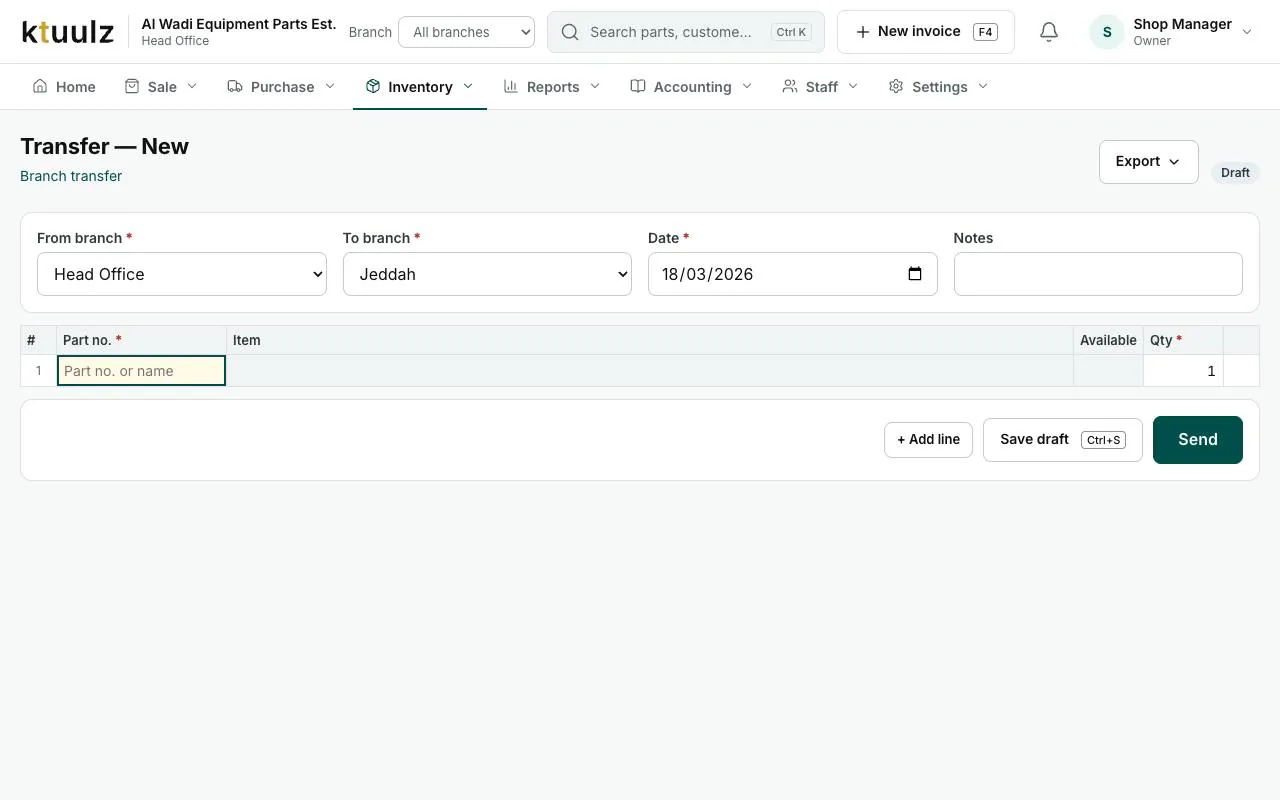
Send parts to another branch
- Send parts → From branch, To branch, the parts and quantities.
- Press Send — one press saves and sends; the parts leave your branch. (Save draft keeps it to finish later; drafts are under All, marked Not sent.)
- A line on every transfer says where it is: Sent — waiting for … to receive, then Received on … by ….
Receive what came to your branch
- To receive lists what is on the way to your branch. Open it → Receive.
- What arrived? — each line starts at the quantity sent; lower it if less arrived → Confirm receipt. The parts land in your branch; anything missing is recorded as a loss in your branch (Arrived short: … missing).
- Only someone working in the receiving branch can receive. The sender sees Sent — waiting … instead. The owner on All branches is told: To receive it, switch your branch to … (the Branch menu at the top).
Requests between branches
Short of a part that another branch has? Ask for it.
- Request parts → Ask branch (the branch that has it), the parts and quantities → Send request.
- The other branch sees it under Requests → Asked of us: Accept and prepare transfer makes a transfer to check and Send; Decline asks Why not? (for example none in stock). An accepted request whose parts have not left yet shows as Accepted — send it.
- Your own requests and their answers are under Requests → Our requests.
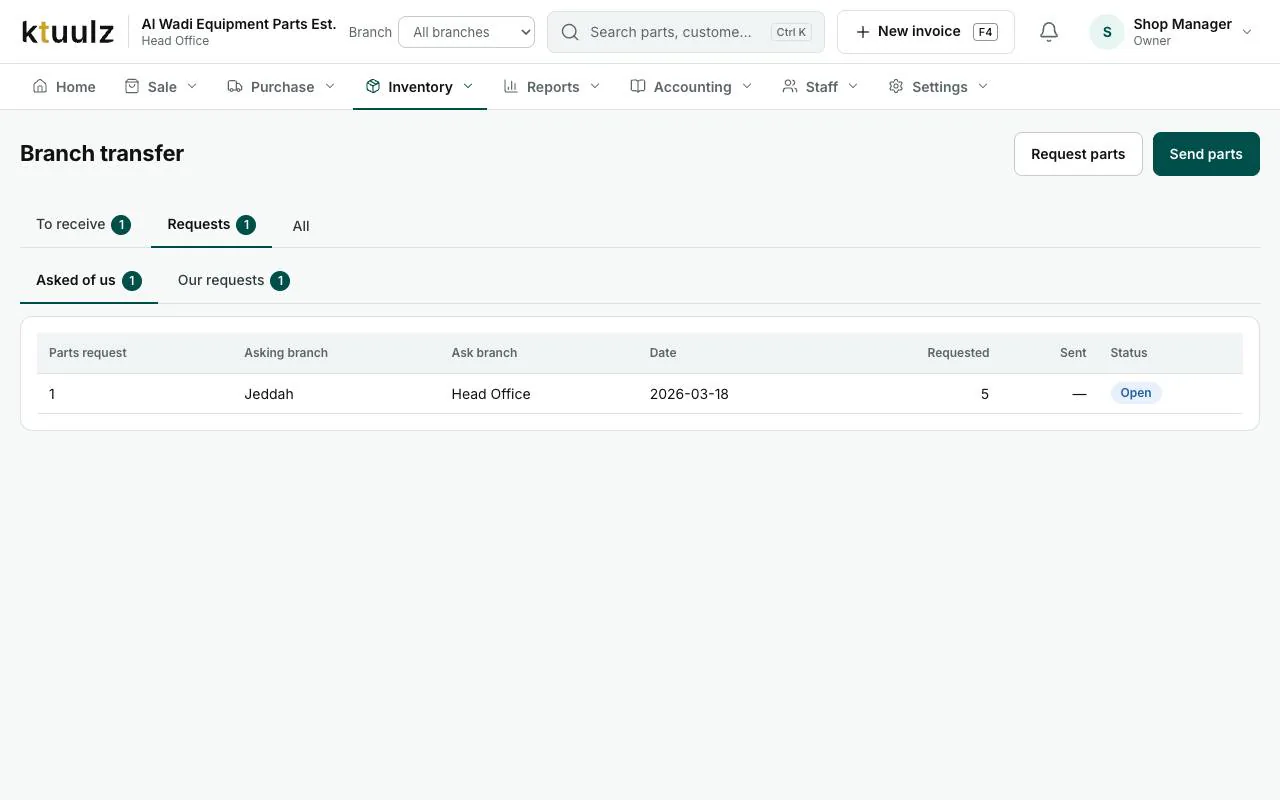
The moves are on Reports → More → Stock moves. Who may send, receive or request is set by the right Transfers between branches and Request stock from another branch (Settings → People and roles).
Stock adjustment
Inventory → Stock adjustment — one screen for counts and corrections. At the top choose:
- Counted (the usual way): the parts with In books, what you Counted and the Difference; posting sets the stock to what you counted.
- + / −: type the change (for example −2 broken).
Every adjustment needs a Reason: Stock take, Damaged, Found, Opening stock or Write-off. You can drop an Excel or CSV file on the screen to fill the quantities. Save it as a draft while you count; Post corrects the stock and the difference goes to the books by itself. The list shows every adjustment with its reason.
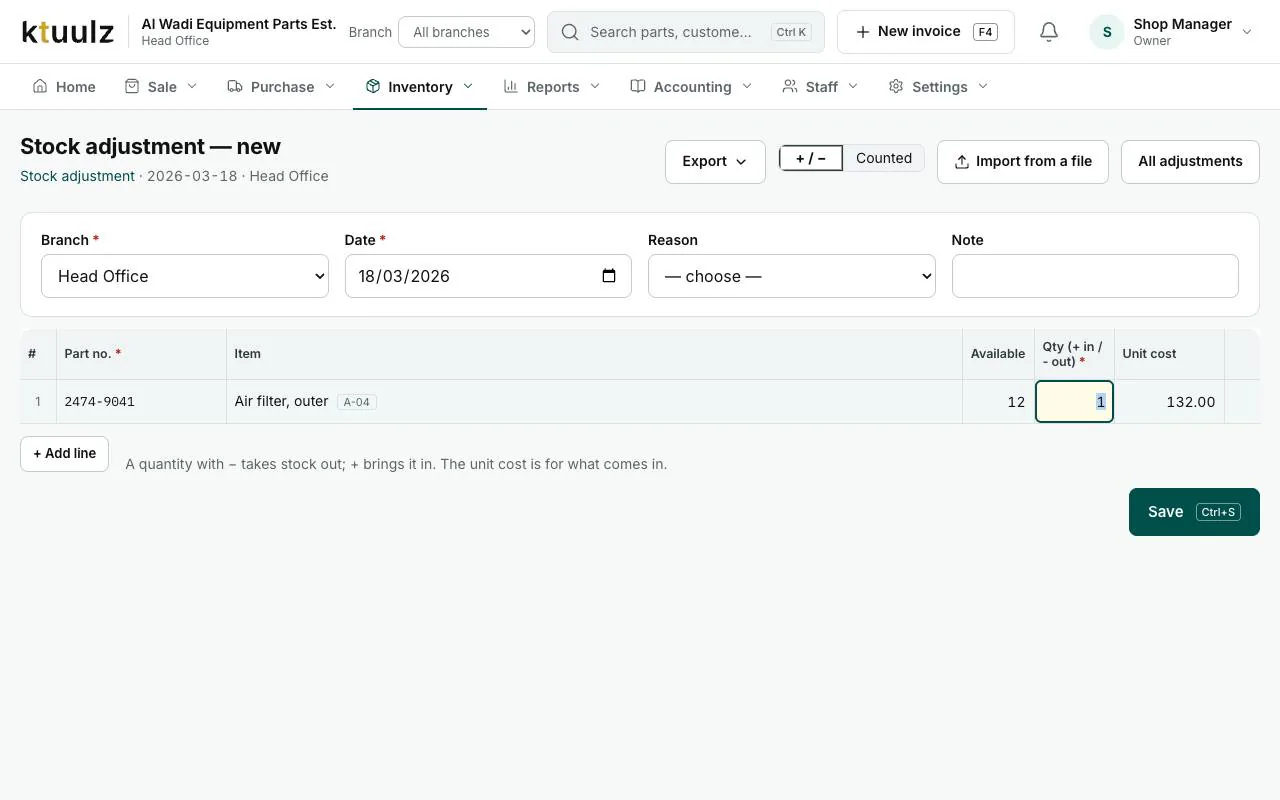
Reports → More → Stock value shows what the stock is worth at cost, by branch.