

Start here
Ktuulz ERP is the shop system for equipment spare-parts traders: you sell at the counter, buy from suppliers, keep stock in every branch, collect what customers owe, and the books, VAT and ZATCA e-invoices follow by themselves. It runs in the web browser (Chrome, Edge, Safari) on a computer, a tablet or a phone — nothing to install. Every screen works in English and Arabic; on a shop PC you may also use the Ktuulz app for Windows (download it from ktuulz.com/erp/download); change the language from your name at the top right.
Words you may not know are in the glossary.
1. Sign up — or sign in
| You are… | Do this |
|---|---|
| New to Ktuulz | On ktuulz.com press Start free trial (try first) or Buy now (choose a plan and pay now). |
| Invited by your shop | Open the invitation email → Sign in to join → Join the shop. |
| Already a user | Open app.ktuulz.com → Sign in. |
Signing in never needs a password: type your email, press Email me a code, and type the 6-digit code from the email — or press Continue with Google.
Making your shop. After signing in, Ktuulz asks What is your company called?: type the Company name and your Mobile number and press Create my shop. There is no tick box: the line By continuing, you accept the terms of use above the button is the agreement. No CR or VAT number is needed now; they come later, before your first tax invoice. When Ktuulz checks new shops before they open, you see Your shop is waiting for approval until then — it is approved within 1 hour and you get an email as soon as it is ready; your free trial starts then. Otherwise the shop opens at once.
- Invited by someone? If your email has an open invitation, the page shows You have been invited to join your shop with a big Join … button — press it instead of making a second company. No — create my own shop for a separate business is only for a really separate business.
- Already have a shop? Ktuulz asks: adding a branch or a person? Press Open my shop and add them there (Settings → Branches, Settings → People and roles). Create a separate shop is for another business.
- Opened an invitation while signed in as someone else? The page says You are signed in as …; press Switch account and sign in with the email the invitation was sent to.
Buy now or free trial?
- Free trial — the shop opens at once with every feature; you choose a plan and pay any time from Settings → Plan & payments. The plan and period you picked on the website are remembered.
- Buy now — you pick the plan and period first, give the company's VAT and CR numbers and address once, then pay by bank transfer (press I've sent the transfer). Card payments show as coming soon. The shop works while Ktuulz checks a transfer, usually within 1 working day.
- During the free trial everything works except Export (lists to Excel): it says Export is available after you subscribe.
- In the free trial invoices are practice records sent to ZATCA's test portal by themselves. After paying, connect each branch to ZATCA once (see Plans and paying, step 6) before the first real tax invoice.
- When Ktuulz confirms the payment you get the tax invoice by email. If a shop is not paid after the trial, it becomes view-only — you can still look, not add.
2. The screen
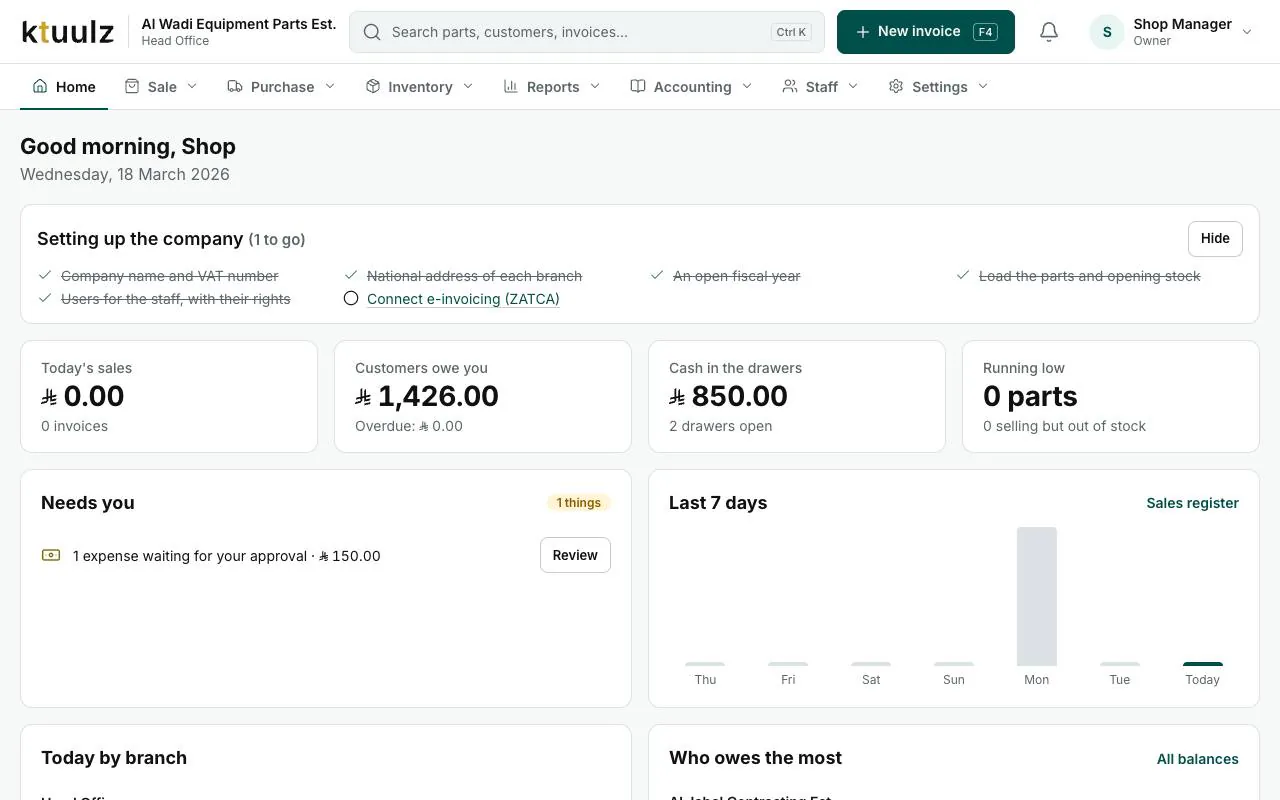
- Top bar: your shop, search (Ctrl+K), + New invoice (F4), alerts, and your name (language, dark mode, menu position, keyboard shortcuts, the guide, sign out). Plan & payments, People and the shop's other settings are in Settings.
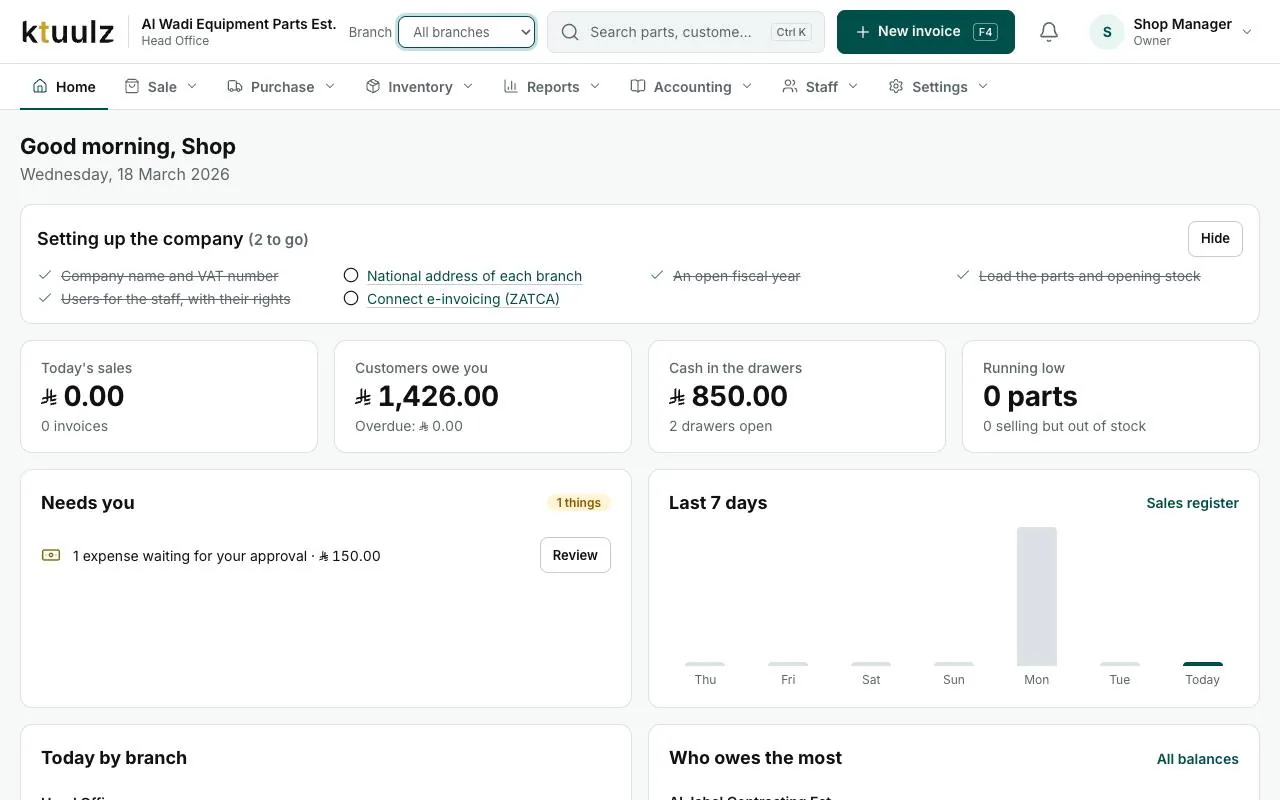
- Branch ▾ (shops with more than one branch, the owner too): choose the branch you are working in. Lists, search,
Home, reports, exports and new documents then follow that branch; All branches brings everything back. It never
changes anyone's rights, and other branches' stock quantities stay visible.
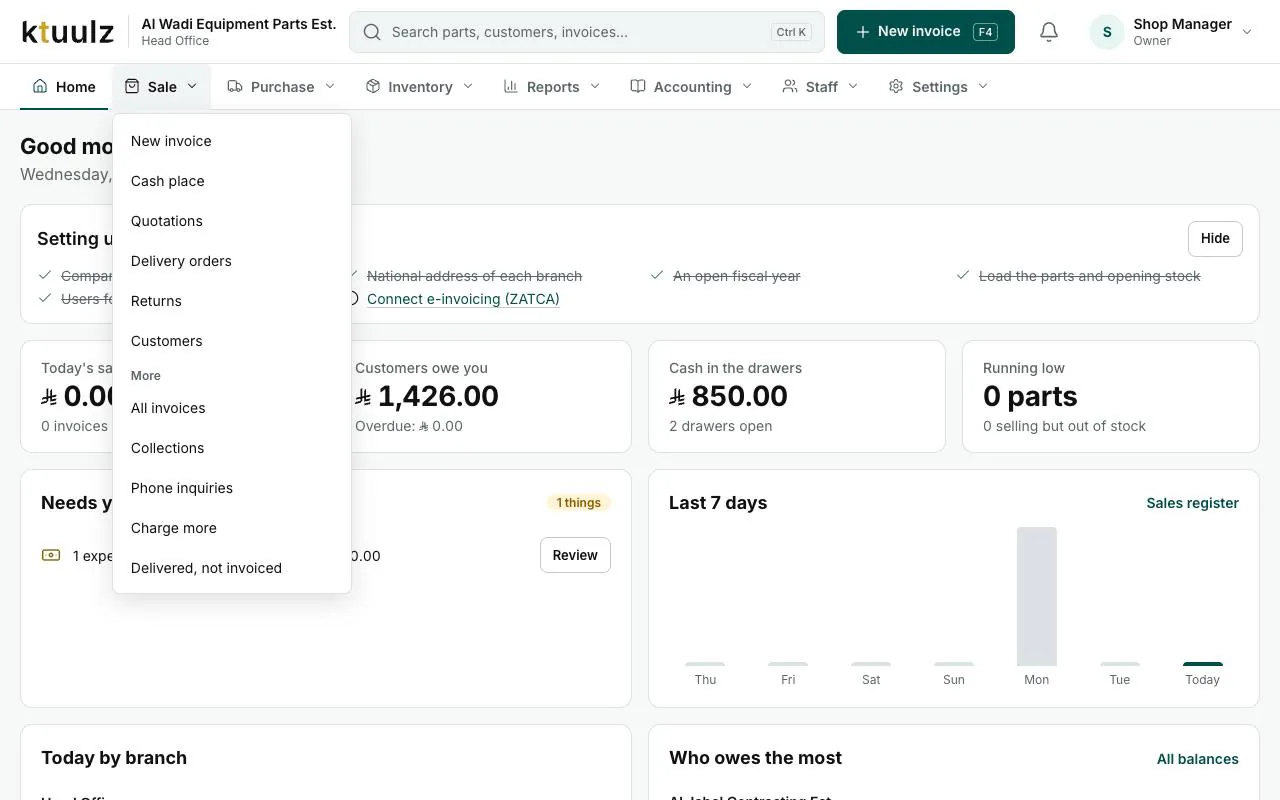
- Menu: Home · Sale · Purchase · Inventory · Reports · Accounting · Staff · Settings. Each opens its list: the daily screens first, the rest under More. You only see what your role may use.
- Menu at the top or the side: your name → Menu position. On a narrow window the sections that do not fit go under ».
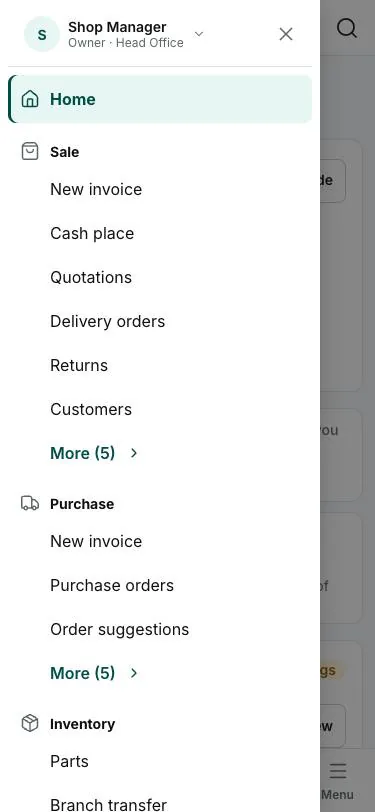
- On a phone: the ☰ button opens the menu as a drawer; the bar at the bottom has Home, Sale (+) and your daily places.
| Top menu, Sale open | Phone |
|---|---|
 |
 |
3. Find anything — Ctrl+K
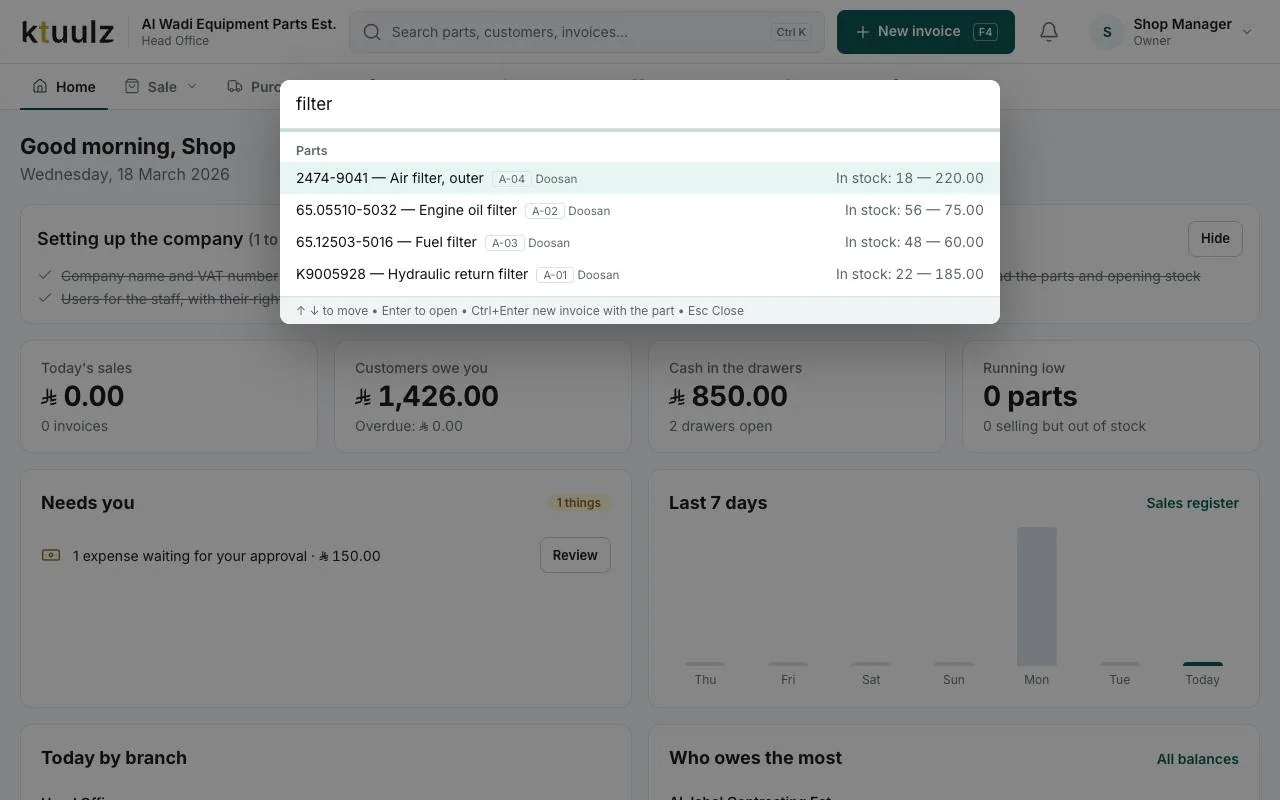
Press Ctrl+K (or the search box) and type a part number, a customer, an invoice number or a screen's name. ↑ ↓ to move, Enter to open, Esc to close.
In a web browser, Ctrl+click (Cmd+click on a Mac) on a list row, a menu item or a link opens that screen in a new browser tab. (In the Windows app, Ctrl+N opens a new window.)
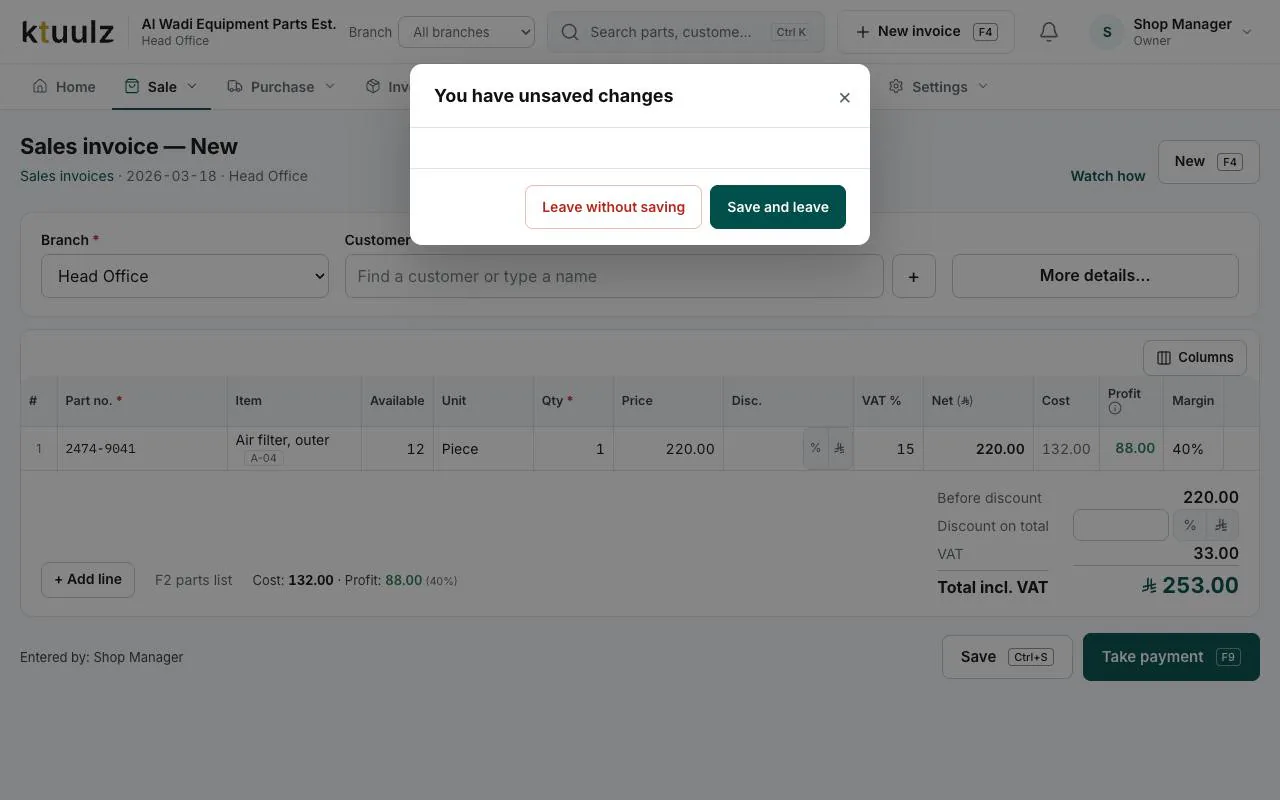
Leaving with unsaved changes? Ktuulz asks You have unsaved changes: Save and leave saves (it never posts or
sends) and goes on; Leave without saving drops the changes. If the save is refused, the box closes and the screen
shows what to fix.
4. Keys that save time
The most used: F4 new invoice · F3 new quotation · F9 take payment · Ctrl+S save · Ctrl+P print · F1 the guide for the screen you are on · Shift+F1 every key. See the shortcuts card.
5. Where next
- Your role's day, step by step: owner · manager · cashier · salesman · storekeeper · accountant
- Every feature: see Part 3.
- Questions: FAQ. Help from a person: the green WhatsApp button at the bottom of every screen.